
Capture any part of your screen
Select an exact area of the screen, adjust it with handles or typed sizes, and capture it again later in one step.
⌃⌘5⌃⌥⌘5
A region capture lets you draw a box around exactly what you want to show. The box stays on screen after you draw it, so you can fix its size and position before you capture.
Select and capture a region
- Press ⌃⌘5, or click Capture at the top of the editor window.
- The screen tints blue. White guide lines cross at the pointer, and a small label shows the pointer’s position in points.
- Drag across the area you want.
- Release. A border with eight handles stays on screen, with a control bar beside it.
- Adjust the area if you need to (see below).
- Press Return or click Capture ↵. To give up, press Esc or click Cancel.
The capture opens in the editor. The border, handles and control bar never appear in the image.
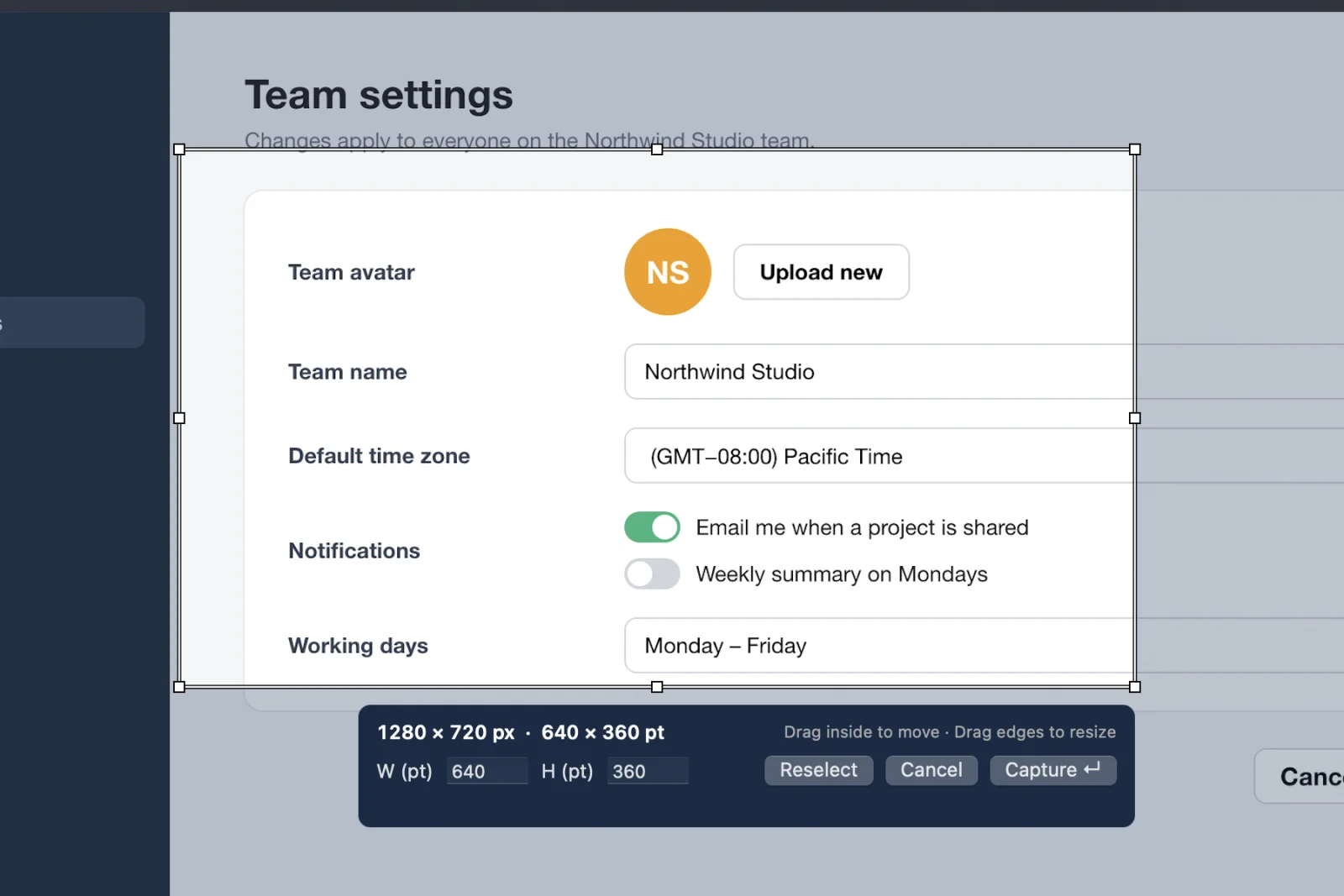
Adjust the area
- Move it: drag inside the border.
- Resize it: drag an edge or a corner handle.
- Type an exact size: enter a width in W (pt) and a height in H (pt). Sizes are in points, the same units macOS uses for the screen.
- Nudge it: press the arrow keys to move it 1 point, or hold Shift to move it 10 points.
- Start over: click Reselect, press Delete, or click outside the border and drag a new area.
On a Retina display, the size label shows both the real pixels and the points, for example “1280 × 720 px · 640 × 360 pt”. The pixel size is what you get in the image.
Switch to a window
Before you start dragging, press Space to pick a window instead, as in macOS. Press Space again to go back to selecting a region. See Capture a window or the full screen.
Keys while selecting
| Key | Does |
|---|---|
| Return or Enter | Capture the selected area |
| Esc | Cancel |
| Space | Switch to window selection (before you drag) |
| Arrow keys | Move the area 1 point |
| Shift + arrow keys | Move the area 10 points |
| Delete | Clear the area and select again |
Capture the same area again
Choose Capture › Capture Previous Region, or press ⌃⌥⌘5. Snix captures the last area you captured, at the same place on screen, with no selection step. This is handy for before-and-after shots of the same spot.
Snix remembers an area only after a capture succeeds. If you haven’t captured a region yet, or that area is no longer on a connected display, Snix asks you to capture a region first.
Good to know
- An area can span more than one display. The label then shows the size in points with “Across displays”. Snix combines the displays into one image at the sharpest display’s resolution.
- If the display arrangement changes while you select, Snix asks you to select the area again rather than capture the wrong place.
- To capture a region after a countdown, use Capture › Capture Region After Delay. See Capture menus and timed shots.
- Captures keep every pixel of a Retina display. See Hi-Res and Retina images.