
Save projects and use windows
Save .snix projects to keep every annotation editable, work in several windows at once, and recover unsaved work.
⌘S⇧⌘S⌘N⌘O
An exported image is final. A Snix project keeps every arrow, label and stamp as an object you can change later. Each document opens in its own window, with its own undo history, so captures never overwrite each other.
Save a project
- Choose File › Save Project (⌘S).
- The first time, choose a name and a folder. Snix saves a
.snixfile.
After that, ⌘S saves to the same file. To save a copy under another name, choose File › Save Project As… (⇧⌘S).
Open a project with File › Open Image, PDF, or Project… (⌘O), or double-click it in Finder. All pages and annotations come back editable, including covers.
The undo history isn’t saved in the project. Changes you made before saving, such as a crop, can’t be undone after you close and reopen the file.
Projects and sharing
A project keeps everything Snix needs to keep editing, including the original image under covers and the original PDF pages. To send your work to someone, export an image or a PDF instead. See Export, copy, drag and share.
Work in several windows
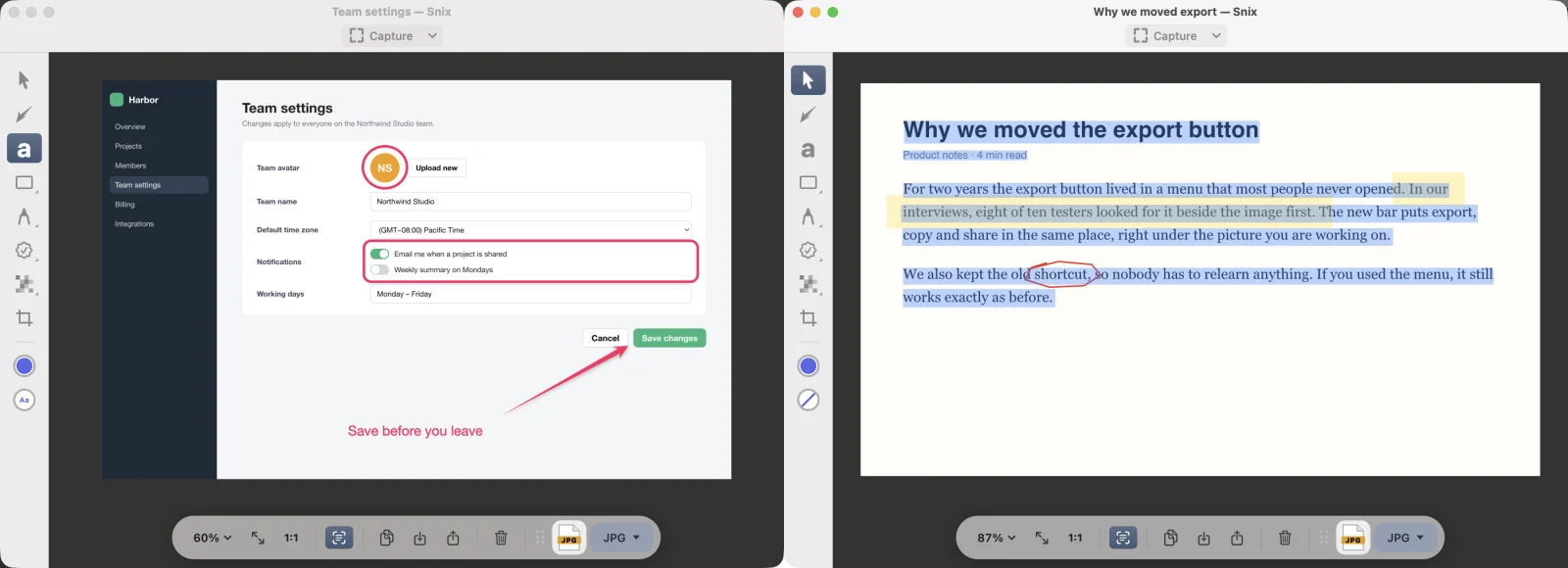
- New Window (⌘N) opens a window with a blank white canvas. You can also choose Blank Canvas from the Capture button’s arrow.
- Each capture opens in a new window. If the current window is empty, Snix uses it instead.
- Each file you open gets its own window, again reusing the current window only if it’s empty. In the Open panel you can select several files at once.
- Dropping a file onto the canvas opens it the same way.
Every window has its own pages, undo history and save location. The Window menu lists them, with Minimize (⌘M) and Bring All to Front.
Paste an image
Choose Paste from Clipboard from the Capture button’s arrow, or press ⌘V on the canvas when you have copied an image. If the window already shows an image, the pasted image replaces it. Snix asks you to save first if there are unsaved changes. Copied annotations paste as annotations instead. See Select, move and style markup.
Close a window
Choose File › Close Window (⌘W). If there are unsaved changes, Snix asks “Save changes to…?” with Save, Cancel and Don’t Save.
The window title shows a dot after the name while there are unsaved changes.
Recover unsaved work
Snix backs up unsaved edits in each window every 15 seconds. If Snix quits unexpectedly, the next launch asks whether to restore the editor windows from last time:
- Restore All reopens each window from its backup, without replacing documents that are already open.
- Ignore discards the backups.
Restored windows aren’t linked to a file yet. Save them with ⌘S if you want to keep them.
Good to know
- You can open any image macOS can read, PDFs and
.snixprojects. - Snix can also open images saved by Skitch 2.9 with their markup editable. See Open Skitch 2.9 files.
- Projects are stored only where you save them, on your Mac.