
Select, move and style markup
Pick tools from the sidebar or keyboard, set color and size, and move, resize, copy or delete any annotation.
⌘A⌘Z⇧⌘Z
Every arrow, shape, label and stamp you add stays a separate object. You can select it later to move it, resize it or change its color, until you export a flat image.
Choose a tool
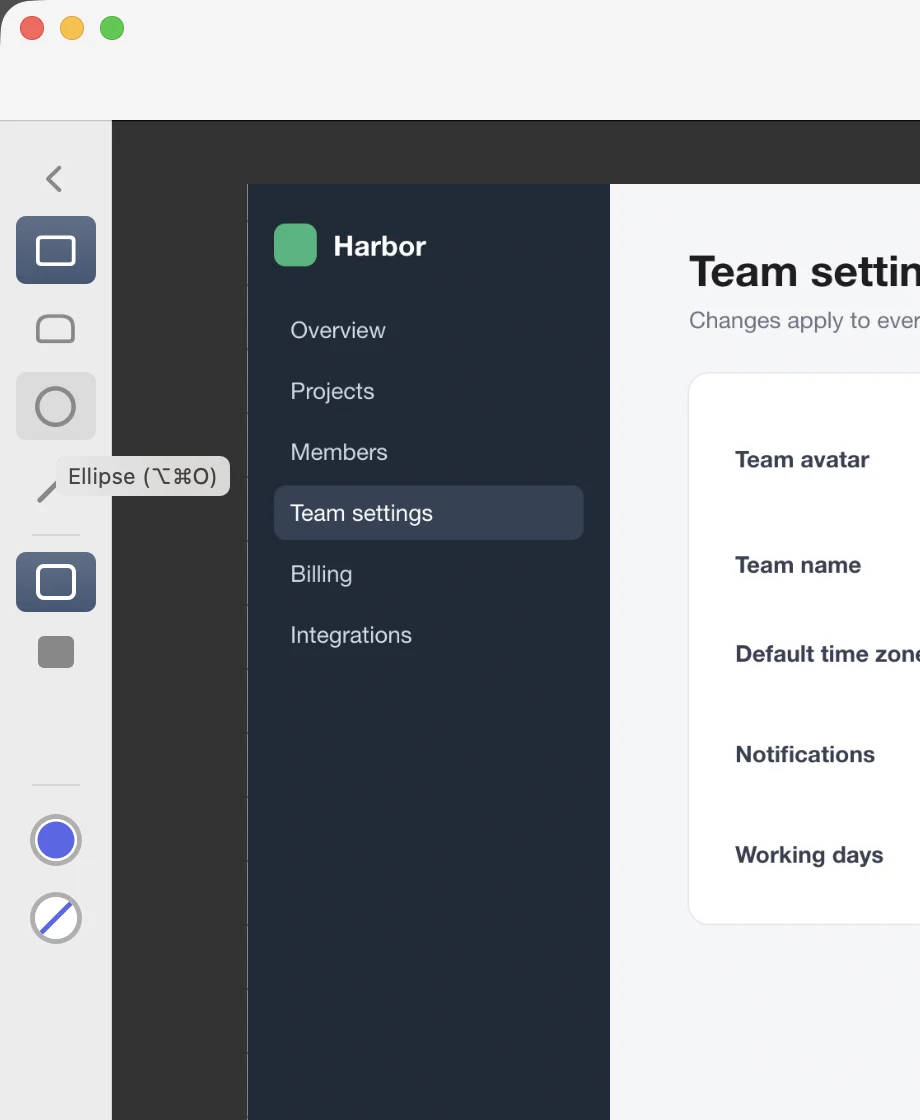
Click a tool in the sidebar on the left, or press its key while the canvas is active. Some sidebar buttons hold a group of tools. When you click one, the sidebar slides over to show the group’s options. Choose an option, click ‹, click the canvas or press Esc to slide back.
| Tool | Key | Tools menu |
|---|---|---|
| Select | V | ⌥⌘V |
| Arrow | A | ⌥⌘A |
| Text | T | ⌥⌘T |
| Rectangle | R | ⌥⌘R |
| Rounded Rectangle | U | ⌥⌘U |
| Ellipse | O | ⌥⌘O |
| Line | L | ⌥⌘L |
| Pen | M | ⌥⌘M |
| Highlighter | I | ⌥⌘I |
| Stamp | P | ⌥⌘P |
| Pixelate | X | ⌥⌘X |
| Frosted Glass | B | ⌥⌘B |
| Solid Cover | E | ⌥⌘E |
| Crop | K | ⌥⌘K |
Hover over a sidebar button to see its name and key. Drawing tools show a crosshair pointer with a small preview of the tool in the current color.
Set color and size
The two circles at the bottom of the sidebar hold the current color and size.
- Color: click the color circle and pick one of the 11 preset colors, or choose More Colors… for the macOS color panel.
- Size: click the size circle. For most tools it sets the stroke width: 2, 4, 6, 10 or 16 points. For text and stamps it sets the font size: 18, 24, 32, 48, 64 or 96 points.
A new color or size applies to the next annotation you draw. If annotations are selected, it changes them too.
Select and change annotations
Choose the Select tool (V), then:
- Select: click an annotation. Shift-click to add or remove others. Edit › Select All Annotations (⌘A) selects all of them on the page.
- Move: drag a selected annotation. Press the arrow keys to nudge it 1 pixel, or Shift and an arrow key for 10 pixels.
- Resize: drag the small white square at the bottom-right corner of a single selected annotation.
- Restyle: with annotations selected, choose a color, size, fill or stamp in the sidebar. The sidebar shows the style of the selection.
- Delete: press Delete, or choose Edit › Delete Annotation.
- Edit text: double-click a text label or a stamp. See Add text and stamps.
Copy, paste and undo
- Copy (⌘C) and Cut (⌘X) work on selected annotations. Paste (⌘V) adds them slightly offset, in the same window or another one.
- With nothing selected, Copy copies the whole image.
- Undo (⌘Z) and Redo (⇧⌘Z) step through your changes. Each window has its own history.
Clear markup
- Edit › Clear All Annotations removes every annotation on the current page and keeps the image.
- Clear Canvas (on the bottom bar or in the Edit menu) removes the image and all pages. Press ⌘Z to bring them back.
Good to know
- Hold Shift while you draw to keep shapes square and lines at 45° steps.
- On a page with text, clicking an annotation always selects the annotation. Clicking text with no annotation on it selects the text. See Copy text from images and PDFs.
- Single annotations can’t be rotated. Rotating the page turns its markup with it. See Crop, resize, rotate and flip.
- Sizes are in points, so a 6-point line looks the same on a Retina capture and a regular one. See Hi-Res and Retina images.