
Copy text from images and PDFs
Select and copy the text in screenshots, images and PDFs, with text recognition that runs only on your Mac.
⇧⌘A⌥⇧⌘C
You can select text in an image the way you select it in a PDF in Preview: drag across it and copy. For PDFs, Snix uses the text already in the file. For screenshots, photos and scanned pages, Snix recognizes the text on your Mac. Nothing is uploaded.
Turn on text recognition
Text recognition for images is off until you turn it on.
- Click Recognize Text in Images on the bottom bar, or choose View › Recognize Text in Images.
- Snix reads the current page. A light sweeps down the image once, and the bottom bar shows “Recognizing text… it can be selected in a moment.”
The setting applies to every window and is remembered. The first time you open an image, Snix shows a short note next to the button with Turn On and Not Now.
PDF text doesn’t need recognition. You can always select it, with the setting on or off.
Select and copy text
- Choose the Select tool (V). Over text, the pointer turns into an I-beam.
- Drag across the text you want. Double-click to select a word, or triple-click to select a line.
- Press ⌘C. The bottom bar shows “Text copied”.
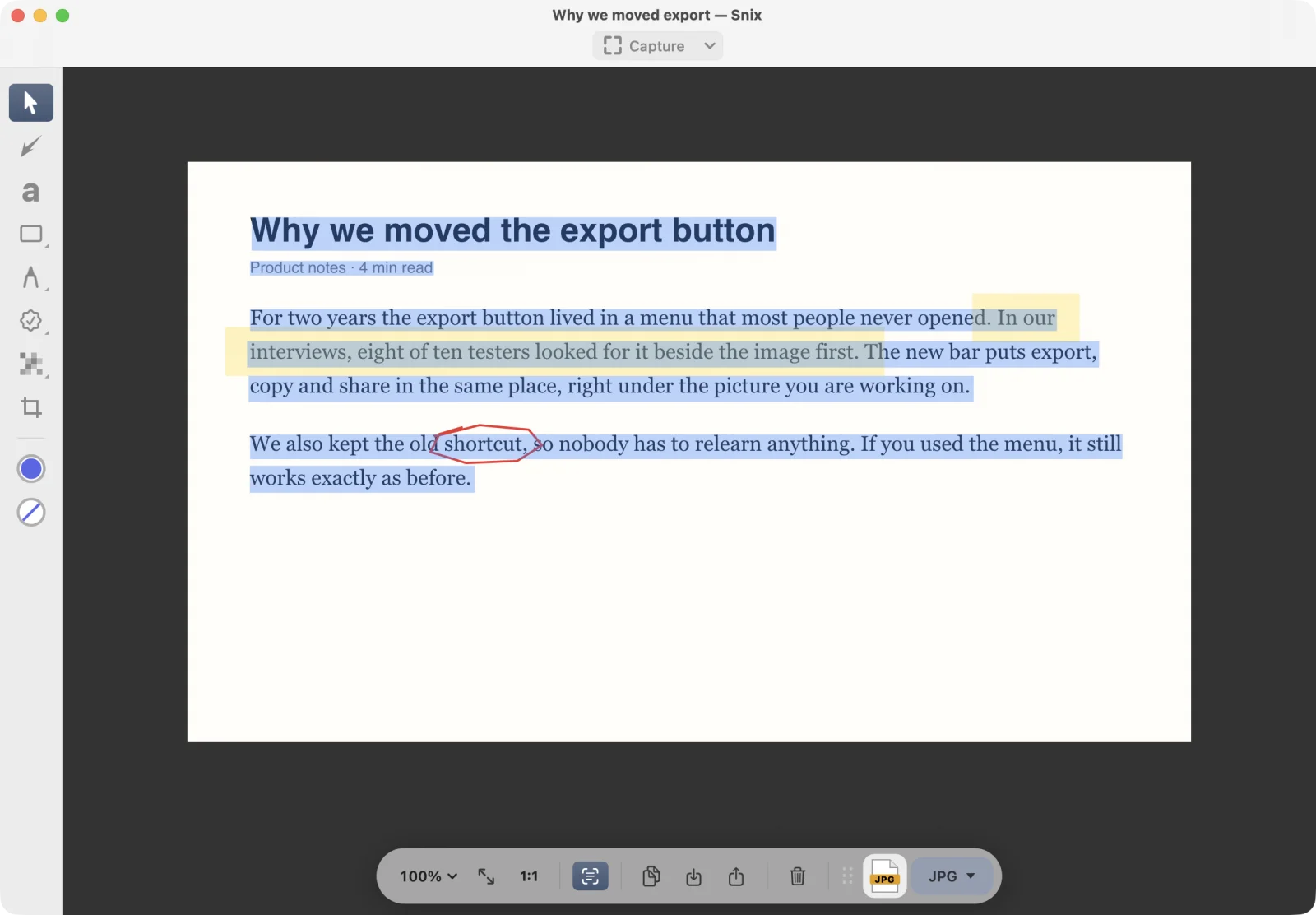
Select or copy all the text
| Command | Shortcut | Does |
|---|---|---|
| Edit › Select All Text | ⇧⌘A | Selects all text on the page |
| Edit › Copy All Text | ⌥⇧⌘C | Copies all text on the page without selecting it |
Both work even with text recognition off. Snix reads the current page just for that command.
⌘A follows what you are doing. After you have selected some text, or on a page with no annotations, it selects all the text. Otherwise it selects all annotations.
Text and annotations
- Clicking an annotation selects the annotation, even if there is text under it.
- Text you can’t see can’t be selected. A character counts as hidden when 40 percent or more of it is under a cover, a stamp, a filled shape, a thick arrow, a pen stroke or a text label.
- The highlighter, thin lines and outlined shapes don’t hide text.
Languages
Snix recognizes text in the languages in your macOS language list, and always includes English. Chinese, Japanese and Korean are supported. To read Korean beside Chinese or Japanese in the same image, add both languages to your preferred languages in System Settings › General › Language & Region. Snix then reads the image once without Korean and once for Korean and English, and merges the results line by line, so recognition takes a little longer.
Good to know
- When text recognition hasn’t been used for a while, the first page can take many seconds while macOS loads its text models. After that, a page takes a fraction of a second.
- If a page has no text, Snix shows “No text was found on this page.”
- Turning text recognition off forgets the text found so far.