
Work with PDFs
Mark up every page of a PDF, manage its pages, and export it with editable annotations, sharp vectors and searchable text.
⌘[⌘]
Snix opens PDFs with the same tools it uses on screenshots. You can annotate any page, then export a PDF that others can still search, and whose markup they can still edit in their own PDF app.
Open a PDF
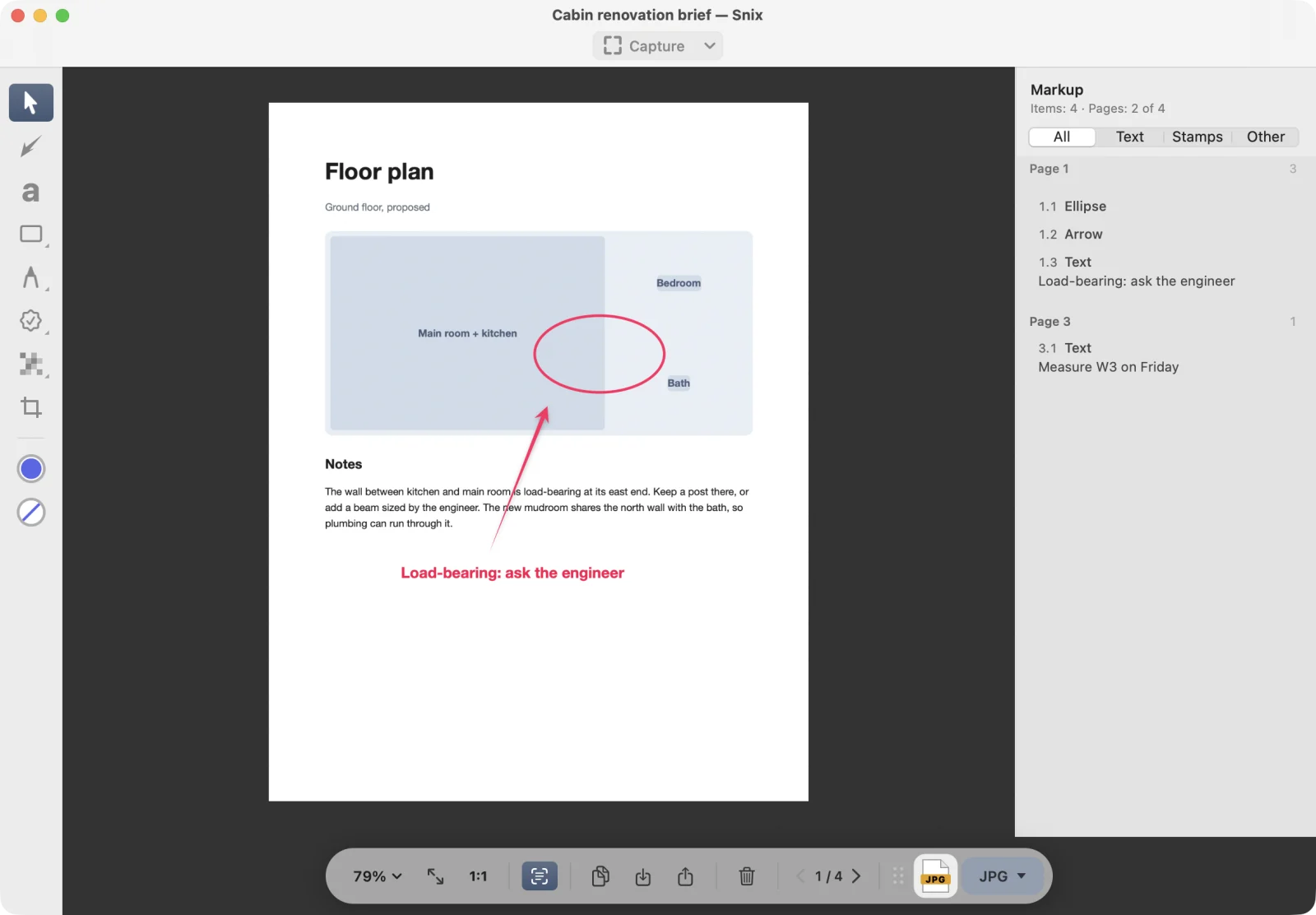
Choose File › Open Image, PDF, or Project… (⌘O), or drag the PDF onto the canvas. Each PDF opens in its own window, with the markup list shown on the right.
Annotations already in the PDF come in as Snix annotations you can edit:
- Annotations Snix exported earlier come back intact, including moves, resizes, color changes and text edits made in other apps.
- Squares, circles, lines, ink drawings and text boxes from other apps become their Snix equivalents.
- Links, form fields, notes and other kinds stay part of the page.
Password-protected PDFs can’t be opened.
Move between pages
- Click the arrows on the bottom bar, or choose Page › Previous Page (⌘[) and Page › Next Page (⌘]).
- Scroll up or down with the trackpad or mouse. When the whole page is in view, scrolling turns the page. When you have zoomed in, scrolling first moves through the page. At its top or bottom, scroll once more to turn the page.
A trackpad swipe turns at most one page, so you won’t race through the document by accident.
Manage pages
- Page › Duplicate Page adds a copy of the current page right after it.
- Page › Delete Page removes the current page. A document always keeps at least one page.
- Crop, resize, rotate, flip and expand work on the current page. See Crop, resize, rotate and flip.
Every change can be undone with ⌘Z.
Export a PDF
- Choose File › Export… (⌘E).
- Set Format to PDF (All Pages).
- Choose the options:
- Merge Markup into Pages: off by default. Off, your markup is exported as standard PDF annotations that people can select, move, change or delete in PDF apps such as Preview. On, the markup becomes part of the pages and can’t be changed or removed.
- Add a Markup Summary at the Start and Pages: see Markup list and summary.
- Click Save.
What stays sharp and searchable
Exported PDF pages keep the original vectors and searchable text, also after you rotate, flip, resize or expand them. Two kinds of page are exported as images instead:
- Cropped pages. Otherwise the cut-off content would stay in the file and could be shown again by enlarging the page.
- Pages with a cover (mosaic, frosted glass or solid cover). Otherwise the covered text could still be selected or searched. See Hide details with covers.
Screenshots and images you add become PDF pages at their size in points, with all their pixels inside.
Good to know
- Markup that Snix can’t edit, such as links or form fields, is drawn into the page on export and is no longer interactive.
- Text color changes made in other apps aren’t read back.
- Dragging the file icon or sharing in PDF format exports every page, without the markup summary.
- File › Print… (⌘P) prints every page with its markup.
- A
.snixproject keeps the original PDF pages so you can keep editing. To send the result to someone, export a PDF. See Save projects and use windows.