
Crop, resize, rotate and flip
Trim a capture to what matters, change its pixel size, add a white margin, and rotate or flip the page.
⌥⌘K⌘R⇧⌘R⌘F
These commands change the page itself, not just the markup on it. Your annotations move, scale and turn with the page, so they stay on the things they point at. Each command works on the current page and can be undone with ⌘Z.
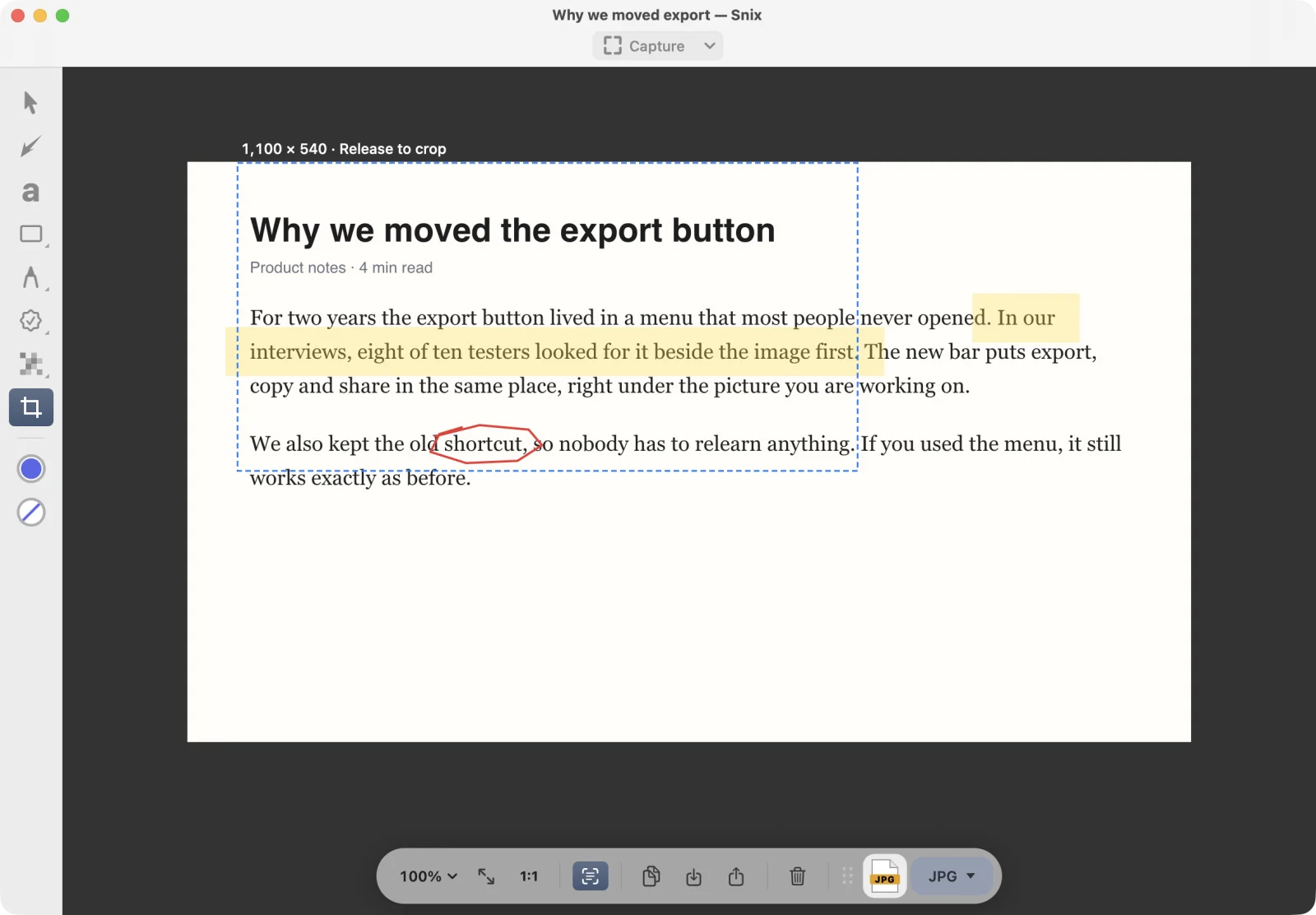
Crop
- Choose the Crop tool (K).
- Drag over the part you want to keep. A label shows the size in pixels with “Release to crop”.
- Release. Snix crops the page at once.
Hold Shift while dragging for a square crop. Annotations keep their place on the image. Parts of the image outside the crop are removed, and markup outside it no longer shows.
If the crop isn’t right, press ⌘Z and drag again.
Resize the image
- Choose Tools › Resize Image….
- Enter a Width and Height in pixels.
- Leave Keep aspect ratio (from width) on to keep the proportions. Snix then works out the height from the width.
- Click Apply.
Annotation positions and sizes are scaled to match. Each side can be from 1 to 16,000 pixels.
Add a margin with Expand Canvas
- Choose Tools › Expand Canvas….
- Enter the number of pixels to add. The default is 100.
- Click Apply.
Snix adds that many pixels on every side, filled with white. This gives you room for labels and arrows outside the original image. You can add up to 4,000 pixels.
Rotate and flip
| Command | Shortcut |
|---|---|
| Tools › Rotate Clockwise | ⌘R |
| Tools › Rotate Counterclockwise | ⇧⌘R |
| Tools › Flip Horizontal | ⌘F |
Shapes, arrows and strokes turn with the page. Text labels and stamps move with it but stay upright, so they remain readable.
On PDF pages
Rotating, flipping, resizing and expanding a PDF page keep its original vectors and searchable text when you export a PDF. A cropped PDF page exports as an image instead, so the cut-off content can’t be recovered from the file. See Work with PDFs.
Good to know
- Crop can be undone while the window is open. Once you save the project and close it, the cut-off part is gone for good.
- Flip works horizontally only.
- These commands change only the page you’re on. In a multi-page document, go to each page you want to change.
- The page’s Retina scale is kept through every change. See Hi-Res and Retina images.