
Get started with Snix
Take your first capture, allow screen recording, and find your way around the editor window.
⌃⌘5
Snix captures your screen, lets you mark up the result, and gets it into an email, a chat or a folder. It also opens images and PDFs, so the same tools work on files you already have. Snix runs on macOS 15 or later.
Take your first capture
- Open Snix. An editor window appears with the message “Capture the screen, or drop an image or PDF here”.
- Press ⌃⌘5, or click Capture at the top of the window.
- The first time you capture, macOS asks whether Snix may record your screen. Turn Snix on in System Settings › Privacy & Security › Screen & System Audio Recording, then capture again.
- Drag across the part of the screen you want, then press Return.
- The capture opens in the editor, ready for markup.
Snix asks for screen recording permission only when you first capture, not when it launches. If the permission doesn’t stick, see Fix permission and capture problems.
The editor window
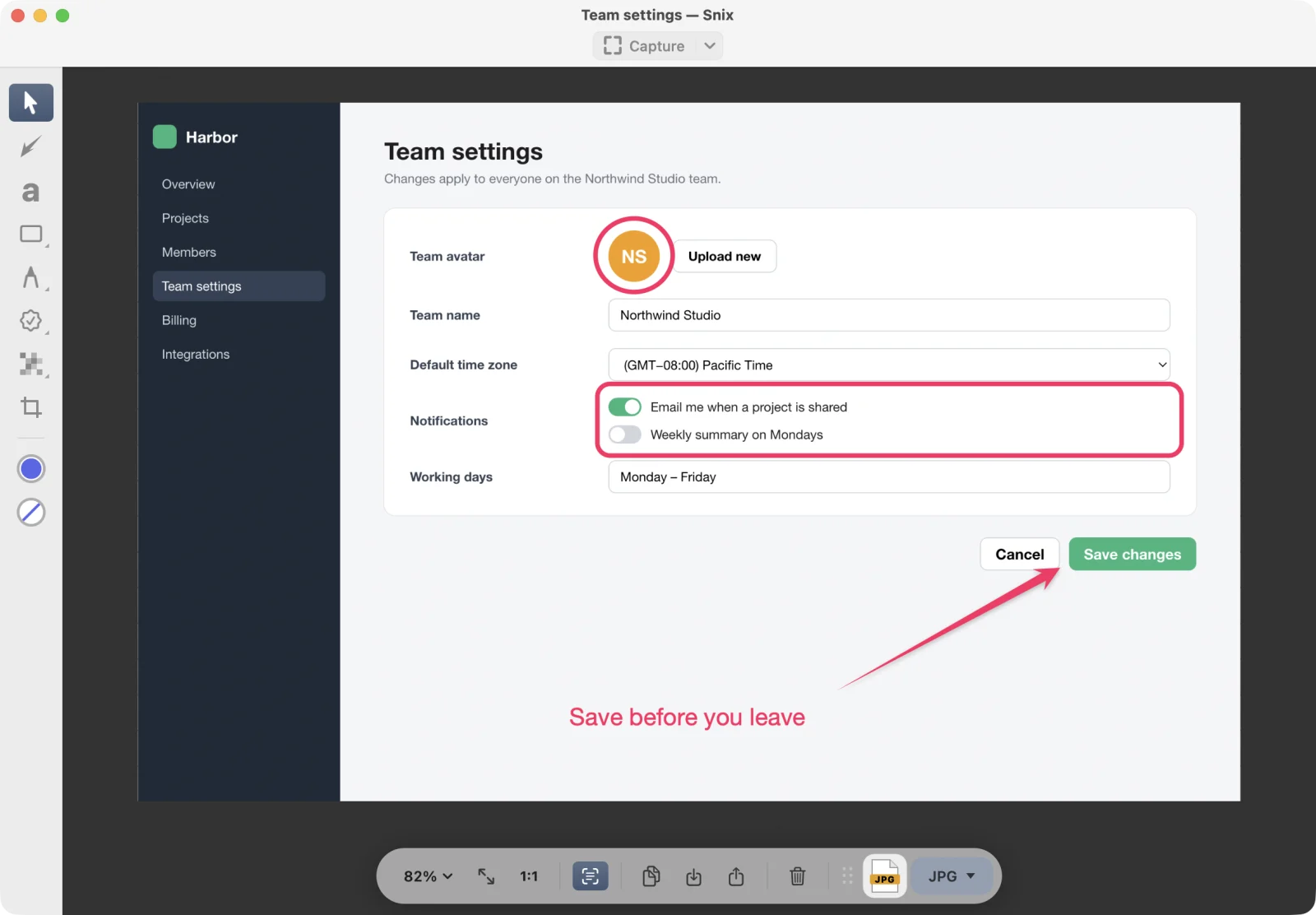
- Capture button, at the top center. Click the main part for a region capture. Click the arrow for More Ways to Capture or Start: Capture Full Screen, Capture Region…, Capture Window…, Capture Region After Delay…, Capture Menu (Delayed)…, Open Image or PDF…, Paste from Clipboard and Blank Canvas.
- Tool sidebar, on the left. Tools sit at the top. The current color and size sit below them.
- Canvas, in the middle.
- Bottom bar, under the canvas. From left to right: the zoom menu, Fit to Window, 1:1, Recognize Text in Images, Copy Image, Export…, Share and Clear Canvas. Documents with more than one page also get page arrows. The file icon at the right end is for dragging the image out.
Short messages, such as “Image copied”, appear just above the bottom bar.
Open an image or PDF
- Choose File › Open Image, PDF, or Project… (⌘O). You can select several files; each opens in its own window.
- Drag a file from Finder onto the canvas.
- Choose Paste from Clipboard from the Capture button’s arrow to open an image you copied.
Zoom and move around
- Use the zoom menu on the bottom bar. It shows the current zoom and offers Fit to Window (⌘0), Actual Size (100%) (⌘1), 50%, 200%, Zoom In and Zoom Out.
- Pinch on the trackpad, or hold ⌘ and scroll, to zoom around the pointer.
- Double-tap with two fingers to switch between fitting the window and actual size.
The menu bar icon
Snix also adds an icon to the menu bar. Its menu has Capture Region, Capture Previous Region, Capture Window, Capture Full Screen, Capture Menu (Delayed), Show Editor, Settings… and Quit Snix.
The first time you close the last editor window, Snix asks whether to keep running in the menu bar. If you choose Keep in Menu Bar, Snix leaves the Dock and your capture shortcuts keep working. You can change this later in Settings.
Next steps
- Capture shortcuts and menus
- Capture any part of your screen
- Select, move and style markup
- Export, copy, drag and share
Good to know
- On its first launches, Snix may offer to use the familiar macOS keys ⇧⌘3, ⇧⌘4 and ⇧⌘5. See Use the macOS screenshot keys.
- The first time an image is shown, Snix offers once to turn on text recognition, so you can copy text out of screenshots. See Copy text from images and PDFs.
- The interface is available in English, Simplified Chinese and Korean.